Showing posts with label use. Show all posts
Showing posts with label use. Show all posts
Tuesday, March 10, 2015
Can you really use Twitter in your Classroom
Twitter was one of those things that I just ignored. I thought it was a little bit indulgent and frivolous, that was until I got shown how teachers are using it for Professional Development. It is interesting how often it is now my first port of call if I am looking for a new Web 2 tool or an App that does a specific task. So how can you use twitter in the classroom? This post is also posted at Edtechtoolbox.
1. Make your own Textbook


We have used twitter in our class as a way of creating our own textbook. It was really a book for those students who wanted to complete some further reading around the subject we were studying. The class was studying a unit of work on Picasso and the Development of Cubism.
We created a class twitter account and then each time any of us found another online resource we retweeted it back to the school account. We then configured our Flipboard to feed from this account on to one of the content pages. The students had access to all of the resources in a format that easily resembled a magazine.
We actually found out about an exhibition that we were unaware was on and the gallery had these fantastic education kits that accompanied the exhibition. That alone made this a great activity.
http://itunes.apple.com/au/app/flipboard/id358801284?mt=8
2. Develop a whole Book with Chapters


Zite is similar to Flipboard. They both provide content that is provided by your twitter feeds. I like Zite because also like Flipboard you can set up different chapters or areas of interest. This would be ideal if you were doing a collaborative project. Each group could produce a chapter within your book by retweeting the relevant tweets they identify around a specific concept or issue. It is a great way to quickly produce an e-book that is specifically designed for your unit of work.
http://itunes.apple.com/au/app/zite-personalized-magazine/id419752338?mt=8
3. Crowd Source a Solution.

Wouldnt it be good to Crowd Source a real problem in your class, school or community. The students could start with brainstorming possible solution themselves and then they could ask the question of other classes who are also using twitter or even the classes of other teachers that are in your PLN. We all have some parents in our classes that are experts in their fields, we could rope them in as well.
4. Create a Class Newspaper.
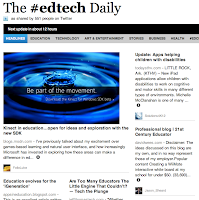
Use your class twitter account in the same way you did with Flipboard or Zite to create a class newspaper. This can be on a whole range of topics that you are studying or on a specific area that you are focusing on. Paper.li is an easy to use and visually appealing solution for creating these. You can have text sites, photos or even videos in your digital newspaper. These can be updated daily, weekly or whenever you change topics. Your Newspaper can be accessed by students in your class, your school or around the world. It is also a great way to let parents know about the topics you are studying in your classroom. I use them for Professional Development as well. There are a number of good ones around Edtech and Web 2 tools.
http://paper.li/
5. Create a real or online Scavenger Hunt with clues distributed via twitter.
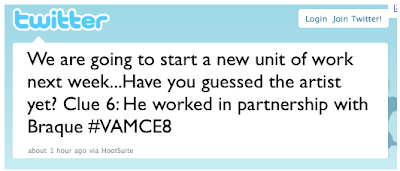
I normally like to use QR codes for the clues in a Scavenger Hunt but just to mix things up I sometimes use Twitter. These Scavenger Hunts can be online like a WebQuest or a series of clues stashed around the school that lead the students to pieces of information that lets them decode the artwork or artist we might be studying that term.
6. Crowd Source a Story in Class.
This is an activity that you could do with paper and pen but it would be so much more fun doing it on your iPad or Laptop. Each student has 140 characters to add their part to a story. When they have finished they send a tweet to the next person. This is a great way to develop creative writing skills as well as making writing a fun activity for those who might normally struggle with a task like this. This would be even better if you then had the students who had already completed their 140 characters to animate it or drawing illustrations for it using Puppets Pals or Toontastic. This could be published as a digital book using one of the many online publishing tools like issuu.com.
7. Create Autobiographies.
Wouldnt it be an interesting exercise to get your students to write a 140 character autobiography. What would they say. How do you cut everything down to 140 characters. Talk about practicing writing a concise piece. This would also be a lovely insight into how your students see themselves. As you know yourself sometime it is harder to put everything into a set word limit than what it is to ramble on. Great way to get to the core of person.
8. Create a 140 Character Biography.
If you are doing a research task about artists, explorers or figures from history wouldnt it be great to get your students to complete a biography of that person or people within the 140 character limit. Again this is about writing in a concise manner - no room for waffle. This is another great opportunity to match up your activity with a drawing or sketch of the person made on an online drawing tool. Couple this exercise with a Voki avatar to then bring your character to life.
9. Summarise Your Work.
How many times do we need students to summarise a paragraph, a concept or a newspaper article so we know that they have an understanding of the issues discussed. Can they do it in 140 characters. This would be a great way to motivate a group of students to complete this task. Maybe they could do it in a series of tweets. You could even peer assess which are the best for each section and then publish a class set of study notes for an end of chapter review or before a end of unit exam paper.
10. Conduct a twitter debate
Now this is a favourite of mine. I love the fact that the students have to be very clear about what they want to say before they start to tap away. With only 140 characters at a time the arguments necessarily need to be lean. This makes for a more lively debate. I also find that the students who do not always vocalise well within the larger group are often happy to participate in these debates. This debating format has been a confidence booster for more than one of our students.
11. Follow a Topic or Issue:
Use Tweetdeck to follow specific # hashtags. Tweetdeck will filter the worlds tweets and only send those back to your Tweetdeck that contain the # hashtags that you have chosen.
This is a great way for students to follow the public opinion of an issue or event. It is also a great way for them to ascertain what are the concerns of those people who are for or against an issue. You can add or delete columns for # hashtags as many times as you like. This would work perfectly in conjunction with a tool like Archivist - which we profiled in a previous post.
The added advantage of a tool like this is you as the teacher can set up your own columns to keep abreast of new Web 2 tools, new Apps for Education or Edtech talk.

http://itunes.apple.com/us/app/tweetdeck/id429654148?mt=8

Sunday, March 8, 2015
Can we use iPads Apps to Research Projects
Can we really research topics, ideas and issues on the iPad. Do we have apps that will allow us to do that properly. More and more companies have made education a priority in their development programs and therefore more quality apps have evolved around the idea of creative ways to collect, gather and research information quickly and efficiently. This is ideal for our students.
Here are a number of apps that allow students to complete research creatively and therefore create meaningful research papers using their iPads.

Wolfram Alpha: $1.99
Wolfram|Alpha - Get answers. Access expert knowledge. Wherever you are. Whenever you need it. Find out how much vitamin C is in a bowl of ice cream. Learn what European country has the fourth largest population of children. Compute solutions to difficult trig and calculus problems. Balance complex chemical equations. Discover what is overhead as you gaze up at the stars. Finally crack that crossword puzzle.
http://itunes.apple.com/us/app/wolframalpha/id334989259?mt=8#

Articles: $2.99
This app presents Wikipedia articles perfectly optimized for reading on your iPhone or iPod touch. A single tap in the search bar lets you find the article you need and start reading. Too many articles to read right now? Just tap and hold on an article link and select “Read Later” to save it to your queue. Each article saved to your Read Later queue includes a short descriptive blurb to help you remember why you wanted to read it.
This app presents Wikipedia articles perfectly optimized for reading on your iPhone or iPod touch. A single tap in the search bar lets you find the article you need and start reading. Too many articles to read right now? Just tap and hold on an article link and select “Read Later” to save it to your queue. Each article saved to your Read Later queue includes a short descriptive blurb to help you remember why you wanted to read it.
http://itunes.apple.com/us/app/articles/id317065689?mt=8

WikiNodes: $0.99
Wikipedia at your fingertips. Articles displayed as nodes that you can touch, drag, and spin around. Tap any node, and it expands to give you more information. Switch to a full-page view to display articles as pages, then scroll up and down. Nodes link together sections of Wikipedia articles and related topics, making Wikipedia come to life. Browse in a way that mimics how you look for things in the real world. Keep track with bookmarks and history.
http://itunes.apple.com/us/app/wikinodes/id433834594?mt=8&ign-mpt=uo%3D4#
 Paper Helper - Easiest Essay: $1.19
PaperHelper uniquely splits your iPad screen in half providing you with a Internet Browser and a Document writer. Seamlessly surf the web for information and transfer it to your document while you keep track of all your sources. This app lets you have the research and the paper open at the same time. For many students this is extremely important. Paper Helper also provides print facilities as well.
http://itunes.apple.com/us/paperhelpereasiestessay/id417344306?mt=8
PaperHelper uniquely splits your iPad screen in half providing you with a Internet Browser and a Document writer. Seamlessly surf the web for information and transfer it to your document while you keep track of all your sources. This app lets you have the research and the paper open at the same time. For many students this is extremely important. Paper Helper also provides print facilities as well.
http://itunes.apple.com/us/paperhelpereasiestessay/id417344306?mt=8

Wordbook XL: $2.99
WordBook is a comprehensive, quick and intuitive dictionary and thesaurus of the English language. Its a great combination of comprehensive contents and fast intuitive interface. Features include 150,000 entries with more than 220,000 definitions, 70,000 usage samples. The app has 23,000 root word origins (etymologies) as well as 120,000 pronunciation guides in International Phonetic Alphabet (IPA) and other notations and spoken pronunciations
http://itunes.apple.com/au/app/wordbook-xl-english-dictionary/id364030280?mt=8#

Dictionary.com: FREE
The free Dictionary.com app for iPad delivers trusted reference content from Dictionary.com and Thesaurus.com. No internet connection needs to search words. The app includes nearly 2 million words, definitions, synonyms and antonyms. It also features audio pronunciation, voice-to-text search and Dictionary.com’s popular Word of the Day and Hot Word blog.
http://itunes.apple.com/us/app/dictionary-com-dictionary/id364740856?mt=8

Things: $19.99
Things is a beautifully focused and amazingly intuitive task manager. Other todo applications either oversimplify or are too difficult to use. Things instead offers the perfect balance between ease of use and powerful features.Effortlessly manage to-dos, notes, due dates, and projects. A smart today list and the scheduling feature allow you to work as effectively as possible - every day. You can even sync wirelessly with the desktop version of Things (sold separately) using Wi-Fi.
http://itunes.apple.com/us/app/things/id284971781?mt=8#

DualBrowser: $1.99
You will be able to browse the web in two different windows at the same time, with the advantage of opening the links from one in the other. Option to make full screen each window and hide the navigation bar. Can save all the cookies, bookmarks and can store session cookies permanently. Full or selective options clear. Perfect for those times when you need more then one source open at a time.
http://itunes.apple.com/us/app/dual-browser/id380640600?mt=8&ign-mpt=uo%3D4#

iSource APA or iPsource MLA: both $1.99
Have to write a Bibliography? Let iSource do the work, you take the credit. Following the APA format, iSource takes care of everything you need to create, save, and share bibliography entries. Just enter the resource information iSource asks you for, the app does the rest. iSource uses a powerful and efficient Core Data database, easily remembering all of your bibliography entry data, including resource type and creation date.
http://itunes.apple.com/us/app/isource-apa/id349729106?mt=8#

iBooks: FREE
iBooks is an amazing way to download and read books. iBooks includes the iBookstore, where you can download the latest best-selling books or your favorite classics – day or night. Browse your library on a beautiful bookshelf, tap a book to open it, flip through pages with a swipe or a tap, and bookmark or add notes to your favorite.
http://itunes.apple.com/au/app/ibooks/id364709193?mt=8

iAnnotate: $9.99
Designed to suit your individual workflow. Customizable tools and toolbars allow you to pick and choose only the tools that you need, and display them where you want on screen. Whether youre taking notes on lecture slides in class or marking up an important business document, iAnnotates customization options allow you to streamline your workflow
http://itunes.apple.com/au/app/iannotate-pdf/id363998953?mt=8

Synotes Slate: $2.99
Synotes Slate (iPad version) is the note taking and management application for the iPad that syncs with the iPhone, iPod touch and web. It effortlessly syncs your information across devices and into the cloud. Synotes comes with both a stylish web interface and user friendly iPad, iPhone & iPod touch application
http://itunes.apple.com/au/app/synotes-slate/id363977021?mt=8

Flipboard: FREE
Flipboard is a fast way to flip through the news, photos, videos, and updates. Locate the latest info from popular or academic publications. The app works by setting up feeds from websites or twitter # hashtags. These are feed back to the app and it presents this vast amount of information as a magazine. Easy for students to browse through and find relevant items. Customize with sections created for each of your different research topics.
http://ax.itunes.apple.com/us/app/flipboard/id358801284?mt=8#
Subscribe to:
Posts (Atom)